Fix caption timing without losing the meaning
A caption has to match both the words and the moment. A file can be syntactically valid and still be wrong: it may name the wrong speaker, omit a meaningful sound, arrive too late, or disappear before the phrase can be read.
Try it as you read: open the Caption Timing Editor and choose “Try the example,” or use the blank worksheet.
Bring a draft you can check
Open the Caption Timing Editor with a basic SRT or WebVTT file you created or are entitled to edit. You can also paste text or build cues manually. The tool does not fetch YouTube captions or transcribe audio. Select your own final video file for local playback if you want to check timing against the edit.
The editor supports up to 500 cues in files under 1 MB. It handles plain text and basic start/end times. Styling, positioning, karaoke markup and VTT header metadata are rejected instead of silently removed. Cue identifiers and NOTE comments are omitted on import.
Understand one cue before shifting the file
1
00:00:00,500 --> 00:00:03,000
Here is the finished overhead frame.
This SRT cue begins at half a second and ends at three seconds. Its duration is 2.5 seconds. SRT exports use commas before milliseconds; WebVTT exports use decimal points and a WEBVTT header. The editor normalizes displayed times to hours, minutes, seconds and three millisecond digits.
Compare the text with the actual speech. Preserve meaning when choosing line breaks; the tool does not score reading speed or establish that a paraphrase is accurate. Meaningful sounds and speaker changes may need text too.
Distinguish a constant delay from drift
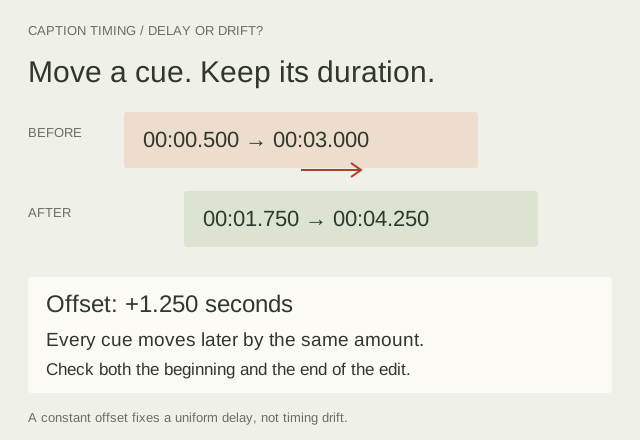
In the fictional example, the cue runs from 00:00:00.500 to 00:00:03.000. Applying +1.250 seconds moves it to 00:00:01.750–00:00:04.250. Both boundaries move by the same amount, so its duration is unchanged.
Check a cue near the beginning and another near the end. If both need the same offset, a batch shift may be useful. If the early cue is correct but later cues become progressively wrong, a constant shift will not repair that drift. Timing differences may come from a changed edit or another mismatch; inspect the source rather than repeatedly applying offsets.
A shift that would send any cue below zero is rejected without changing the draft. Adjust the affected cue deliberately or choose a smaller shift.
Review ordering and overlaps
Every cue needs an end after its start. Export also requires cues in ascending start order. Move a row with Up or Down if the file is out of sequence. An overlap is reported for review, rather than treated as automatically invalid: simultaneous speakers or sounds can require overlapping cues.
The playback preview lists all active cues as plain text beneath the video. This is a timing aid, not a recreation of every destination player’s typography or positioning. Check the destination player as well.
Export the format your destination supports
Download SRT or VTT after resolving the format errors. Keep a JSON project backup to preserve your editable draft. Browser storage is convenient but can be cleared; the selected video is never embedded in the backup.
YouTube documents supported caption formats and limitations in its caption-file reference. The WebVTT specification defines cue timing and the richer features this small plain-text editor does not implement. Exporting a file does not upload or publish it.
Make the final review a listening task
Play representative sections, including a speaker change, a pause and an important sound. Check that the wording stays accurate when the caption is read without the image. Review any overlap warnings and verify both the first and last cues.
When the edit changes, check captions and chapters together. Removing an opening section can move both. Keep the original draft until you have verified the new files on the final video.